Use the Wayne dApp
The Wayne dApp is a convenient front-end for users to interact with the DataHaven network. It guides you through connecting your wallet, creating buckets, and uploading or downloading files without writing any code.
Buckets created in Wayne are currently public, meaning anyone can access the data stored in them. There are no access controls or privacy features at this time; private buckets will be added in a future release.
Prerequisites
- DataHaven testnet RPC added to your wallet (see the Storage Starter Kit for RPC details; the connection flow below will also prompt you to add it)
- MOCK testnet tokens to cover transactions and storage fees
- Wayne testnet URL
Connect and Fund Your Wallet
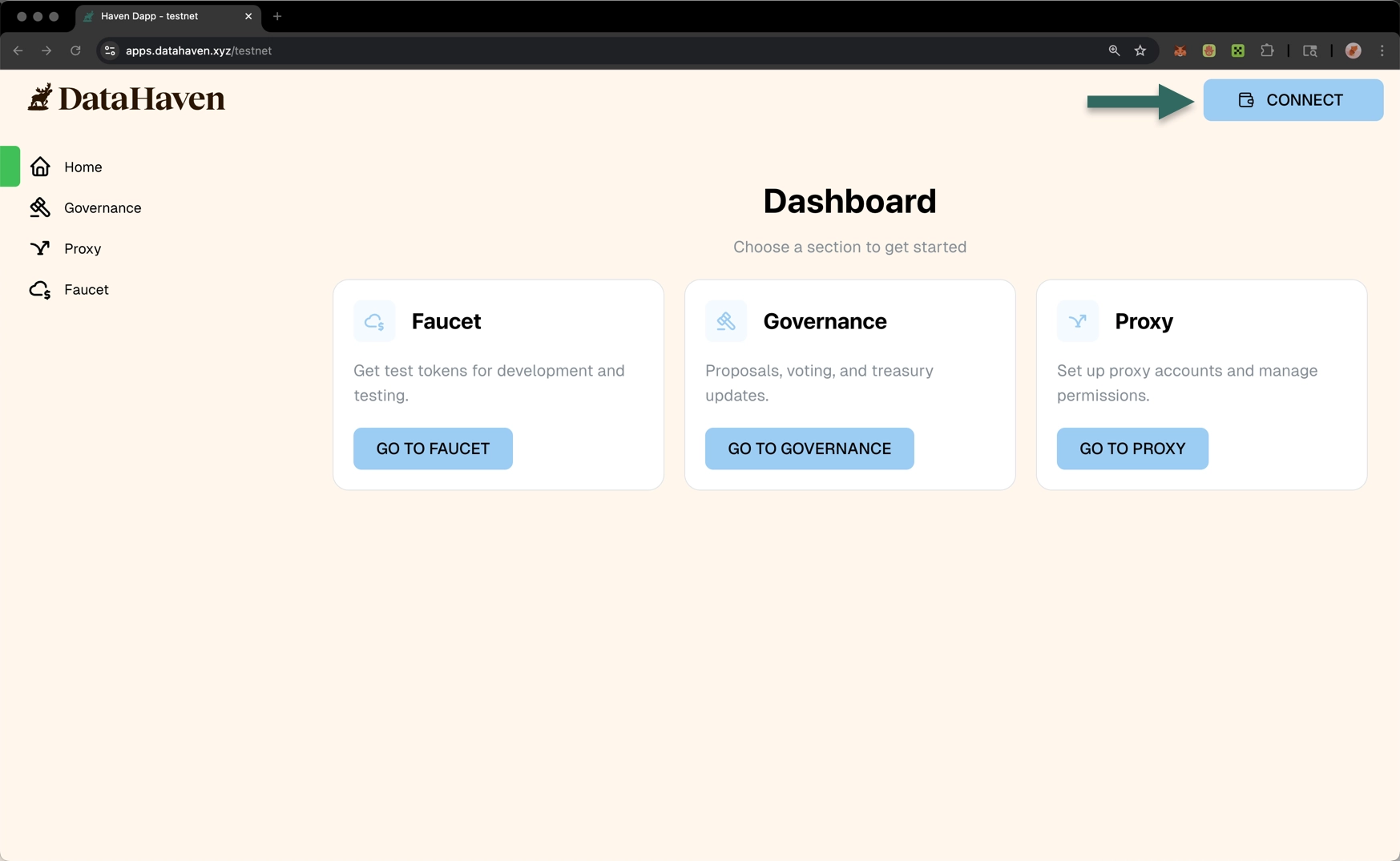
To get started, visit the DataHaven testnet portal and click Connect. When prompted, approve adding the DataHaven testnet RPC to your wallet, then sign the login message to authenticate.
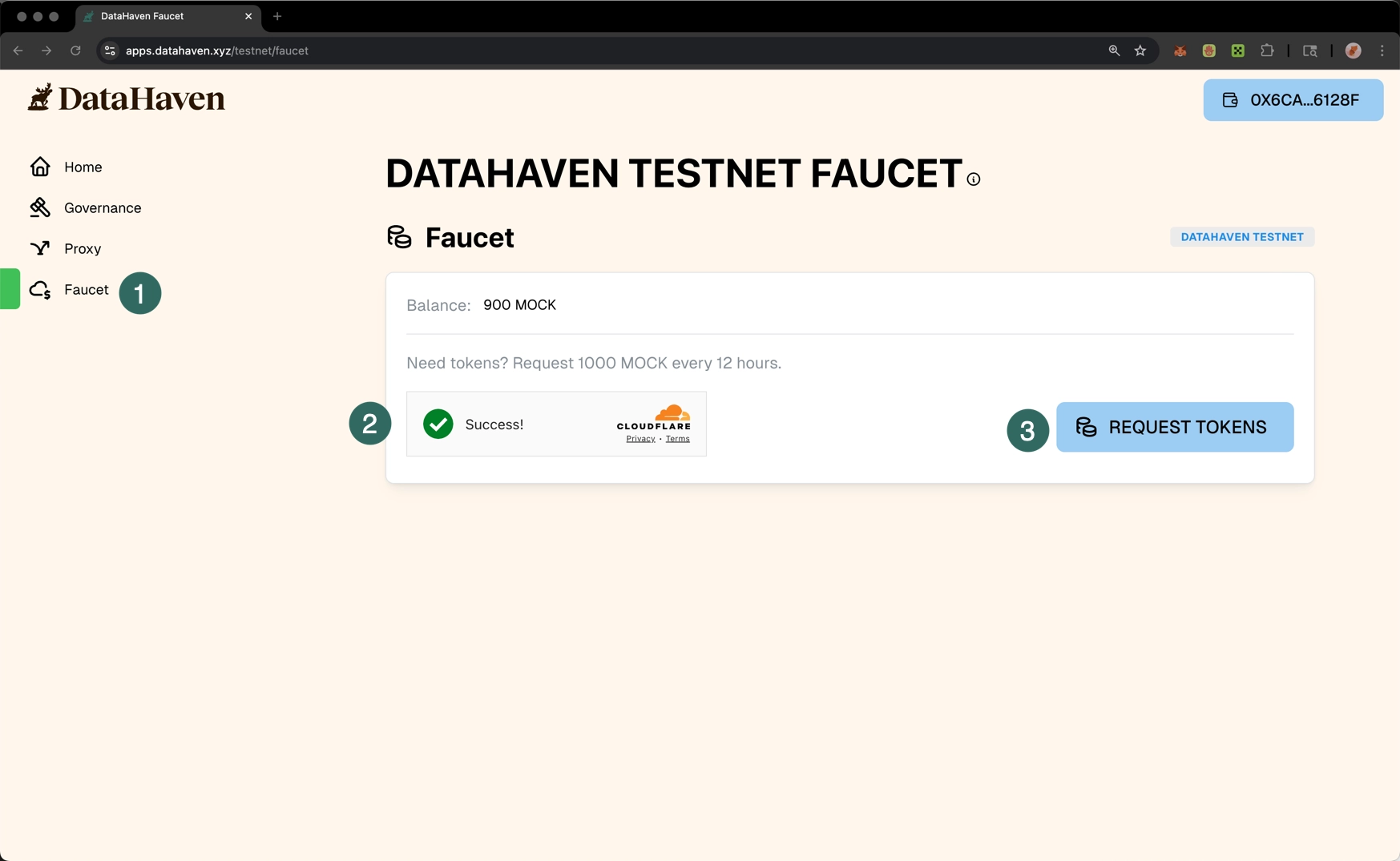
Then, in the Faucet tab, complete the captcha and click Request tokens to receive MOCK for gas and storage payments.
Authorize Storage Payments
- Go to the Wayne dApp on testnet.
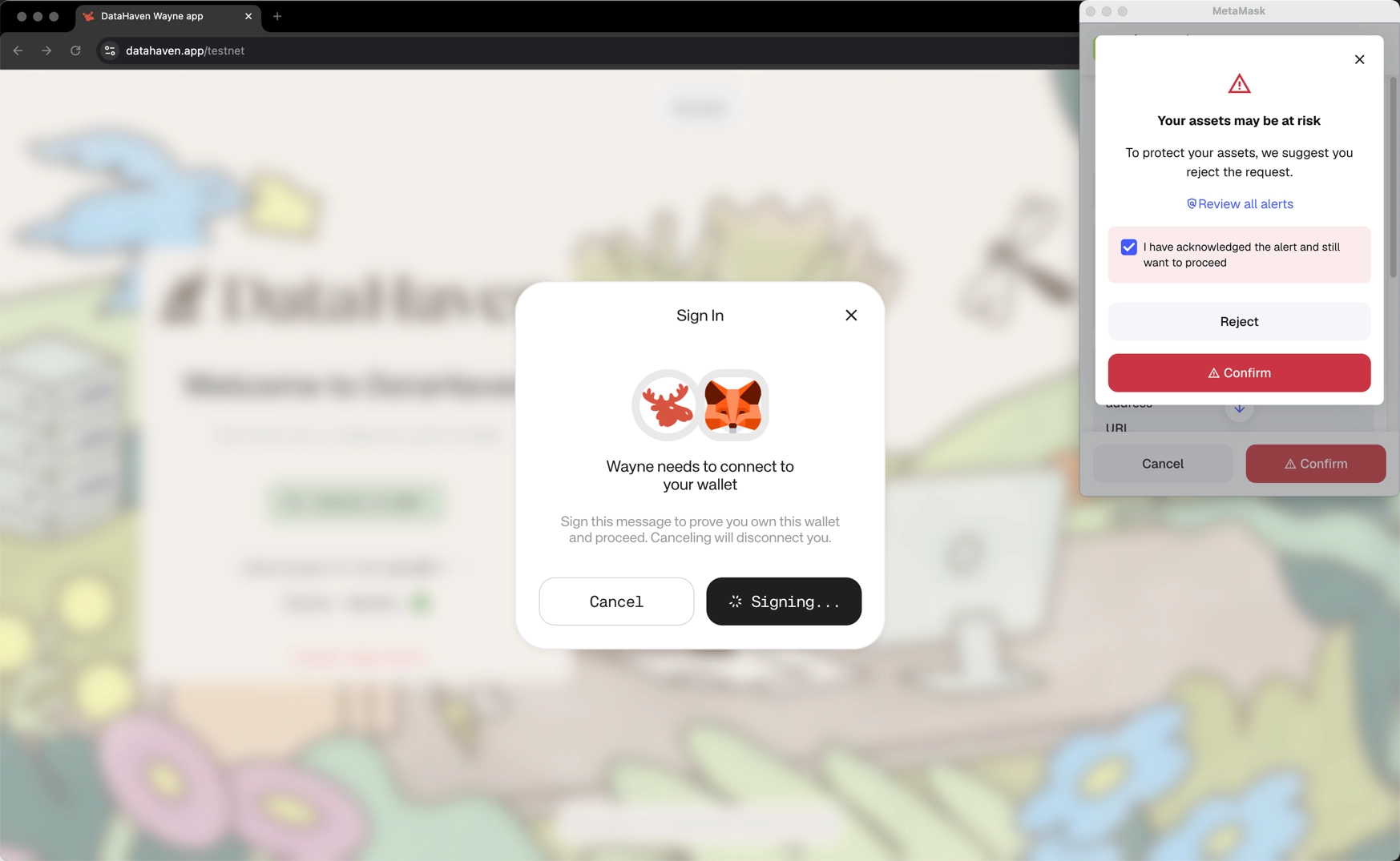
- Click Connect wallet and choose your wallet provider, then sign the login message.
- Approve the allowance prompts that appear. DataHaven charges on an ongoing basis for the amount of data you store and the desired replication factor, so these approvals let the dApp deduct storage fees from your testnet balance when you upload files.
Create a Bucket
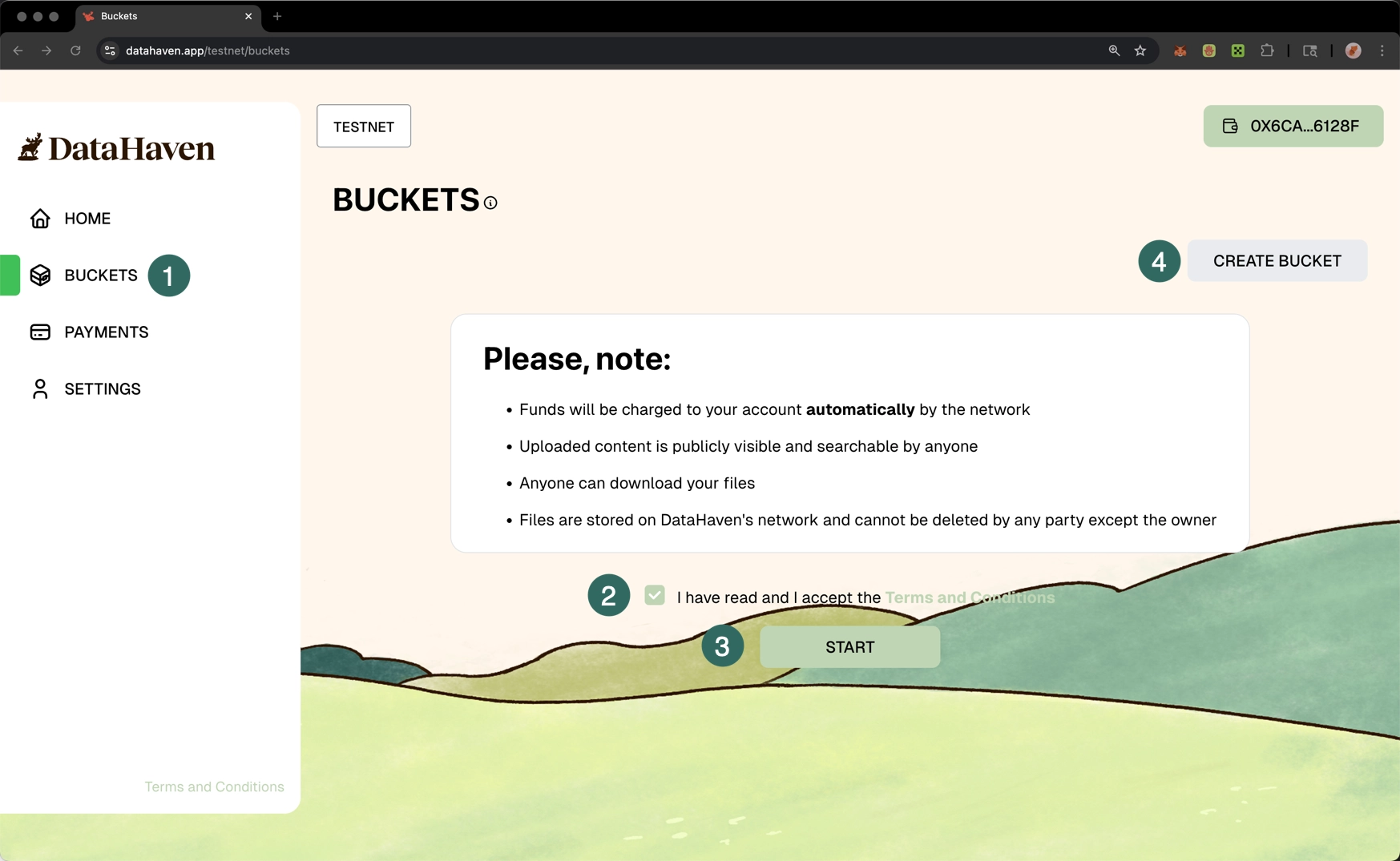
- In Wayne, open Buckets and review the notice that buckets are public on testnet.
- Select the checkbox that you have read and agree to the terms and conditions.
- Press Start.
- Click Create Bucket.
In the pop-up window, give the bucket a name and press Create Bucket. Then confirm the transaction in your wallet.
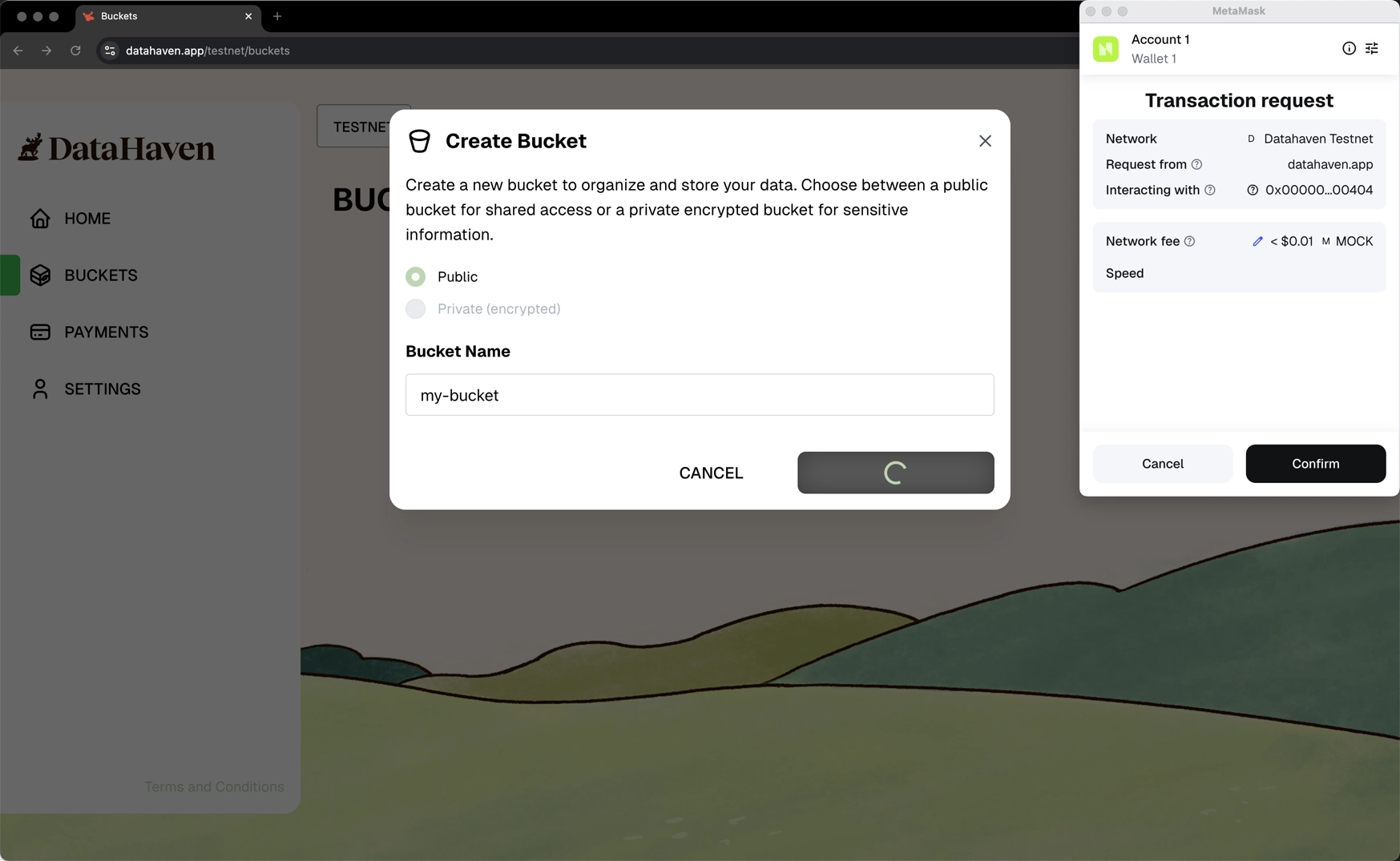
Wait a few moments while the bucket is indexed. Once it appears, you can open it to manage files and folders.
Upload and Download a File
- Open your bucket and (optionally) create folders to organize files.
- Click Upload, choose a file from your computer, and leave replication settings as-is (they are fixed in the current release).
- Select Create Storage Request and confirm the transaction to start the upload.
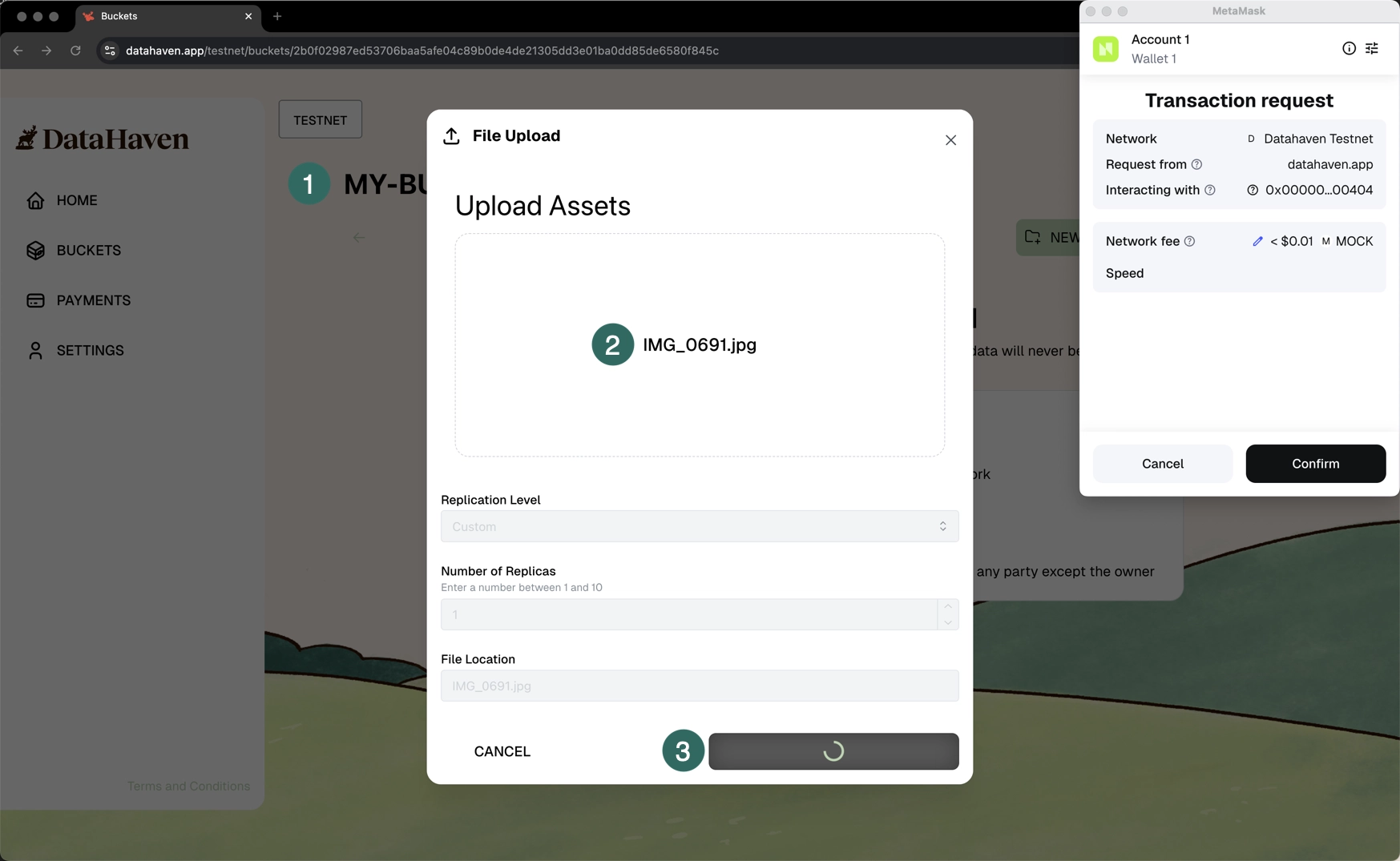
The upload shows In progress while replicas are distributed. You can still click Download during replication. Once replication meets the target, the status switches to Ready.
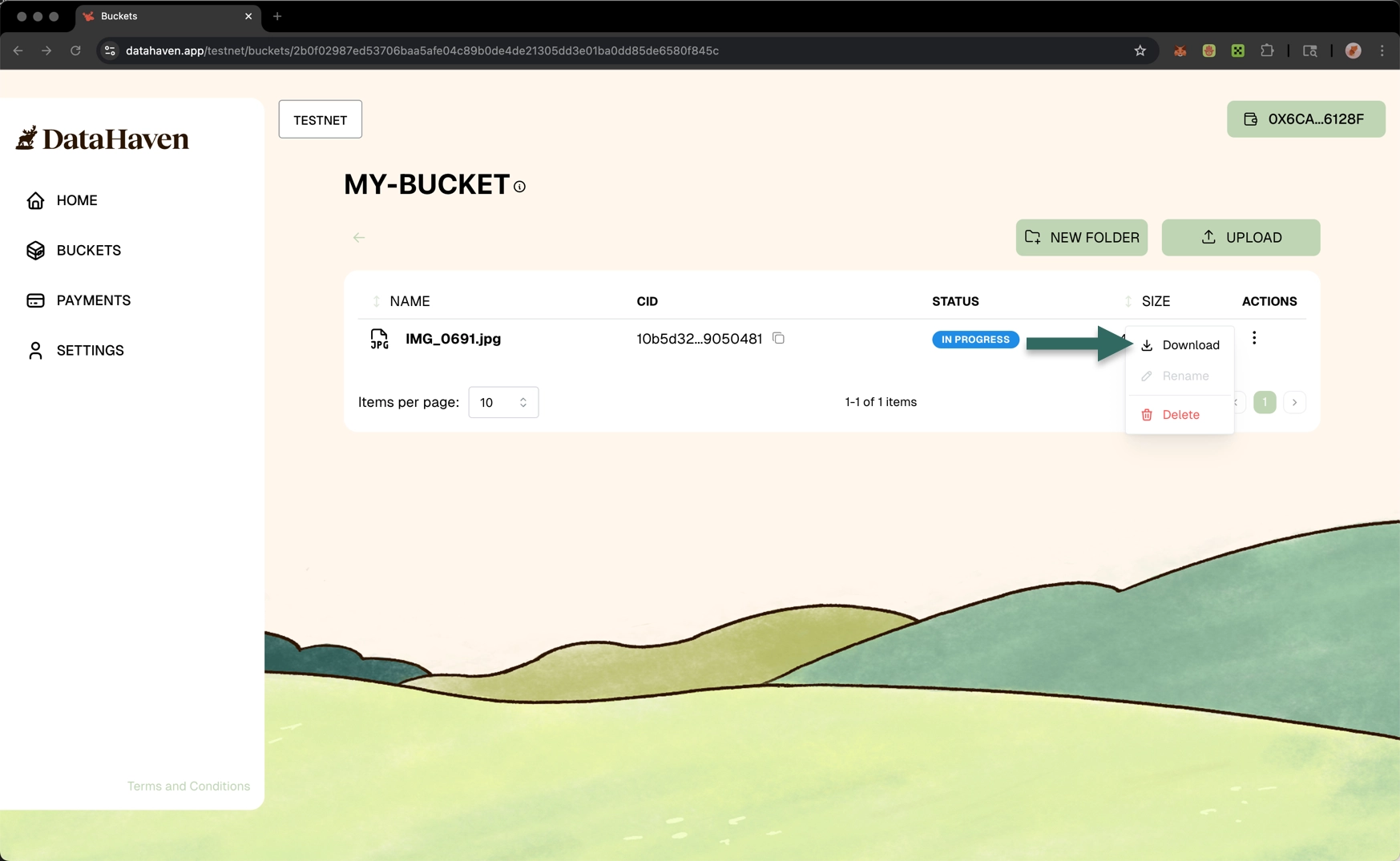
That’s all you need to store and retrieve files on DataHaven using the Wayne dApp.
| Created: December 11, 2025